onboarding

Pool onboarding

Reviewed onboarding journey that introduces Pool, collects light user context, and guides setup through permissions and import preferences before entering the app.
1
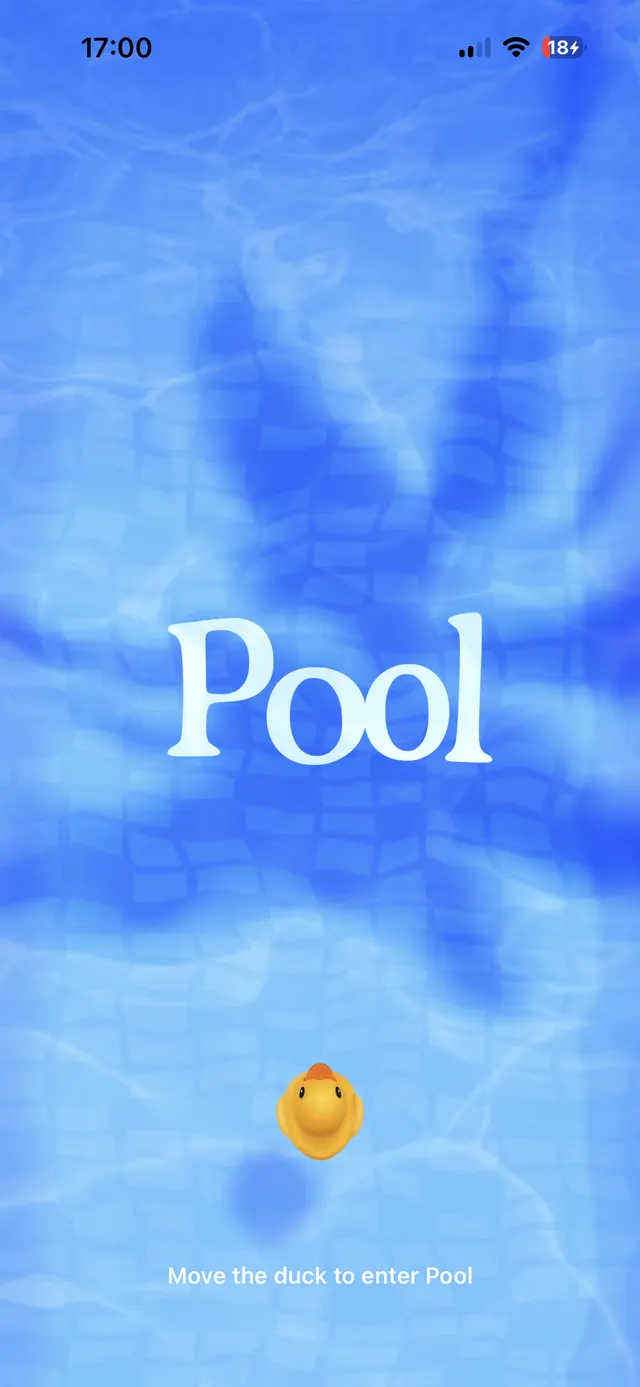
A blue watery splash screen with the word Pool centered, a small duck icon near the bottom, and the instruction 'Move the duck to enter Pool'.
Pool splash / drag-to-enter intro screen

Start with the playful entry screen to establish brand and interaction.
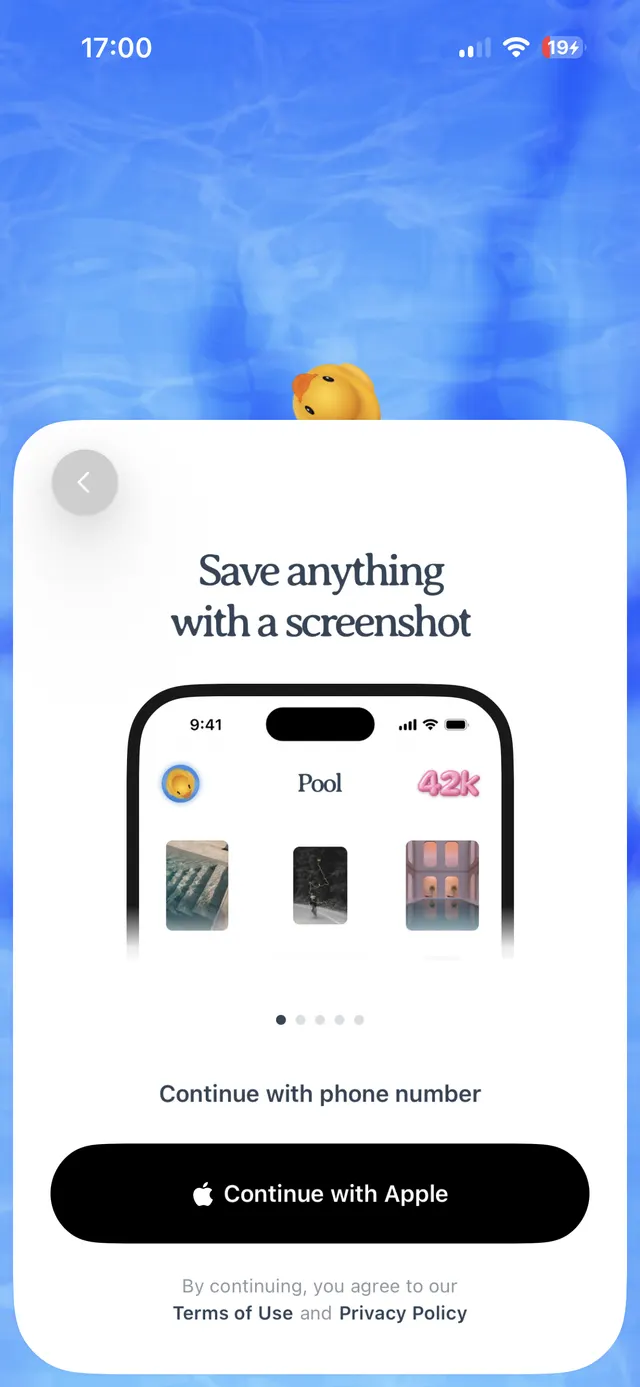
2
A mobile sign-up screen on a blue watery background, featuring a large white rounded card with a back button, the headline “Save anything with a screenshot,” a product mockup image, a pagination dot indicator, text “Continue with phone number,” a black “Continue with Apple” button, and Terms of Use / Privacy Policy text at the bottom.
Sign-up promo card with social login CTA

Offer sign-up/login options after the intro so users can get in quickly.
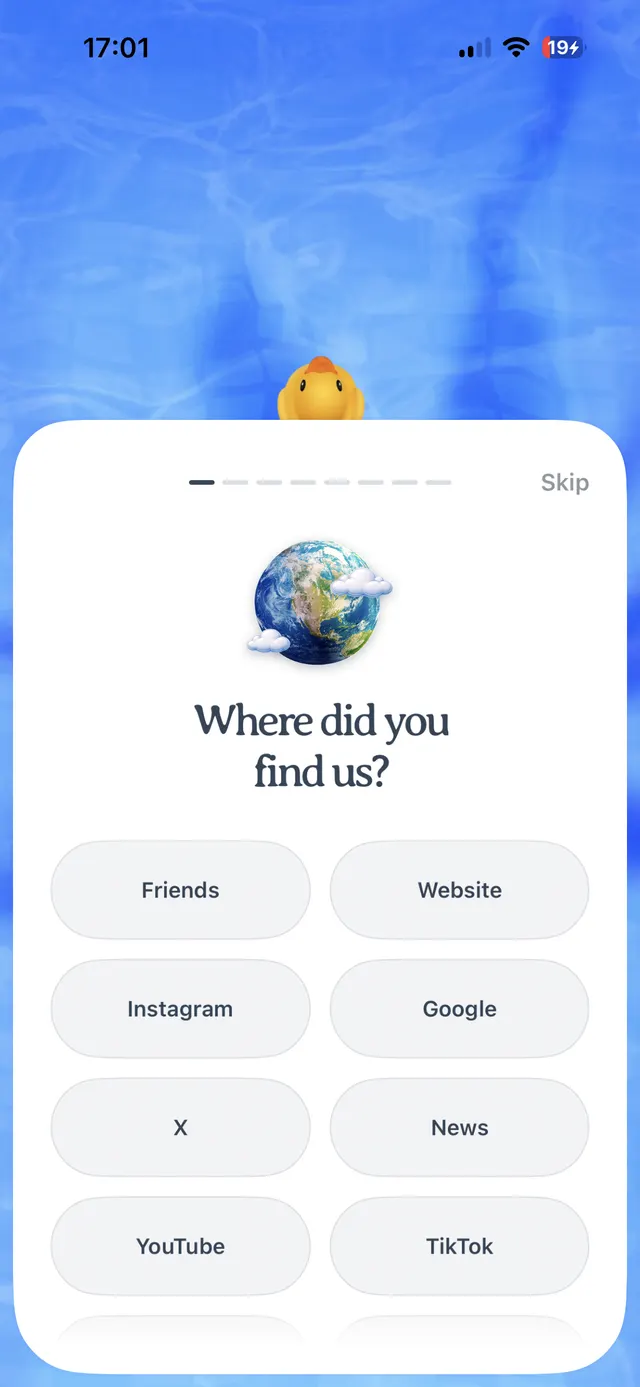
3
Mobile onboarding screen asking where the user found the app, with a skip link and rounded option buttons such as Friends, Website, Instagram, Google, X, News, YouTube, and TikTok.
Onboarding source selection

Ask a single-source attribution question to keep onboarding lightweight.
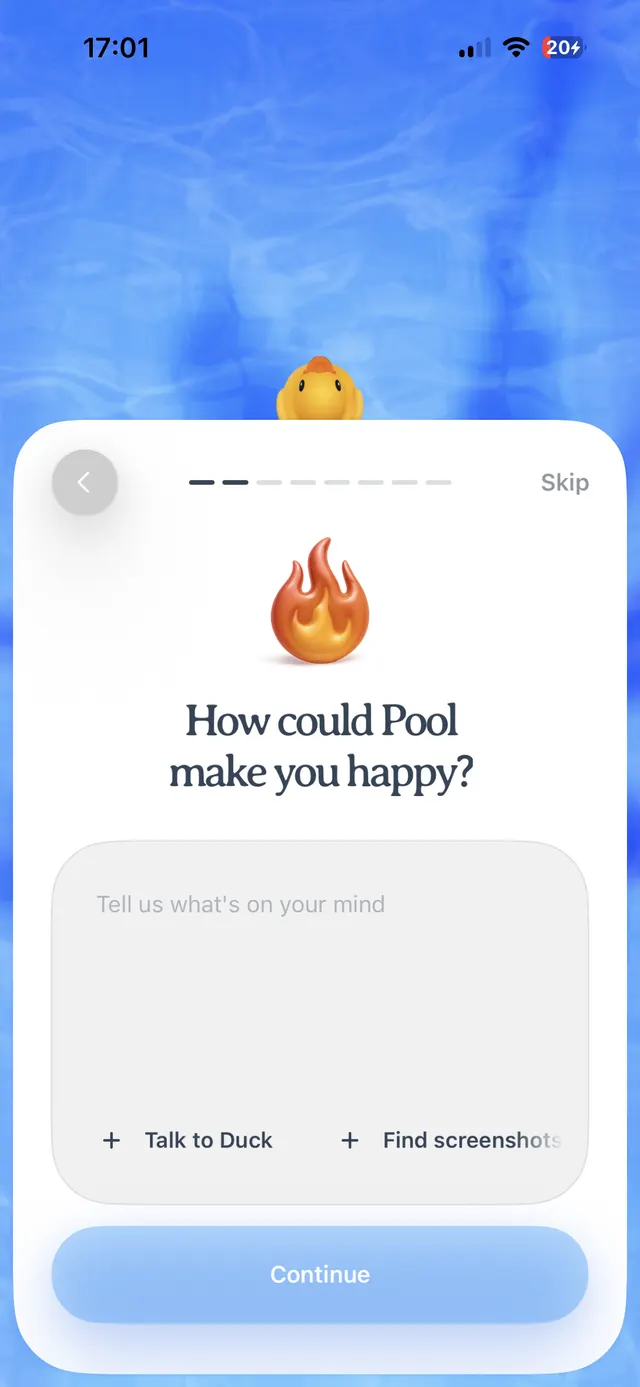
4
An iPhone onboarding screen with a blue water-like background and a large rounded white card. At the top of the card there is a back arrow on the left, a multi-step progress indicator in the center, and a Skip link on the right. In the middle is a flame emoji above the question “How could Pool make you happy?” Below it is a large rounded text input area with placeholder text “Tell us what’s on your mind,” plus quick action options “Talk to Duck” and “Find screenshots.” A large blue Continue button sits at the bottom.
5
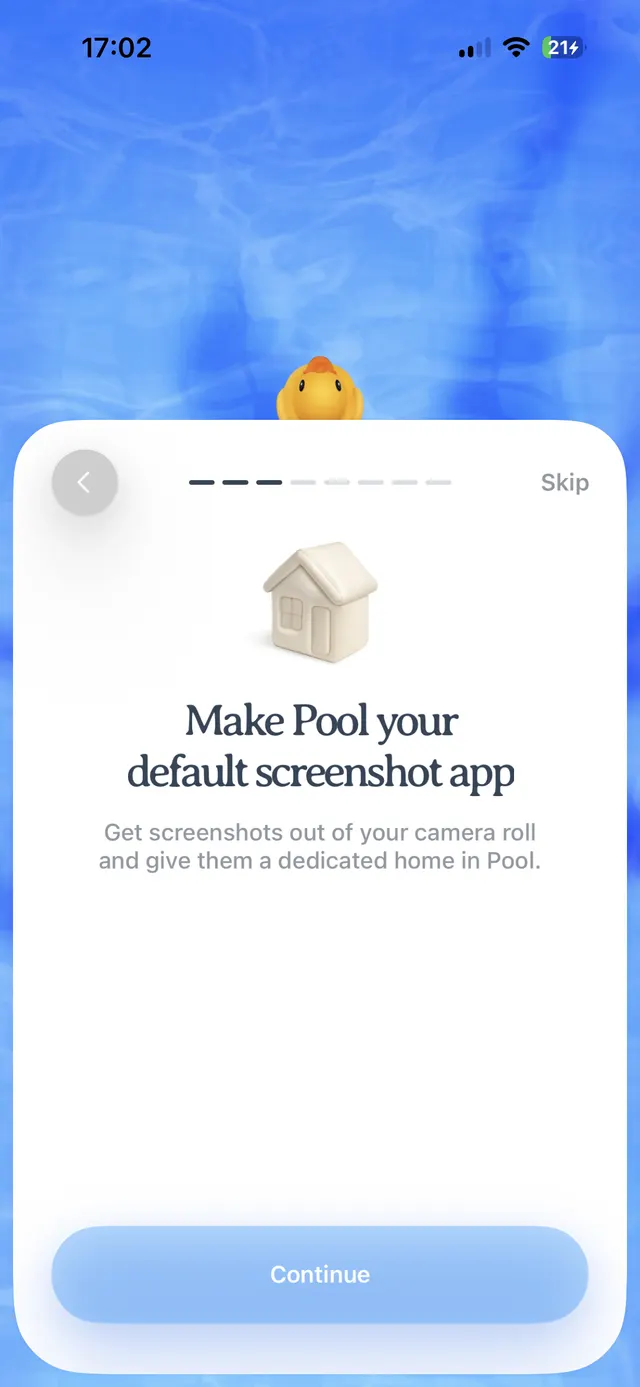
iOS onboarding screen with a blue water-like background and a large rounded white card. At the top of the card are a back button, a progress indicator, and a Skip link. The card shows a small house icon, the headline 'Make Pool your default screenshot app', supporting text about moving screenshots out of the camera roll, and a large Continue button at the bottom.
Onboarding permission-priming card

Prime the default screenshot-app value prop before requesting system changes.
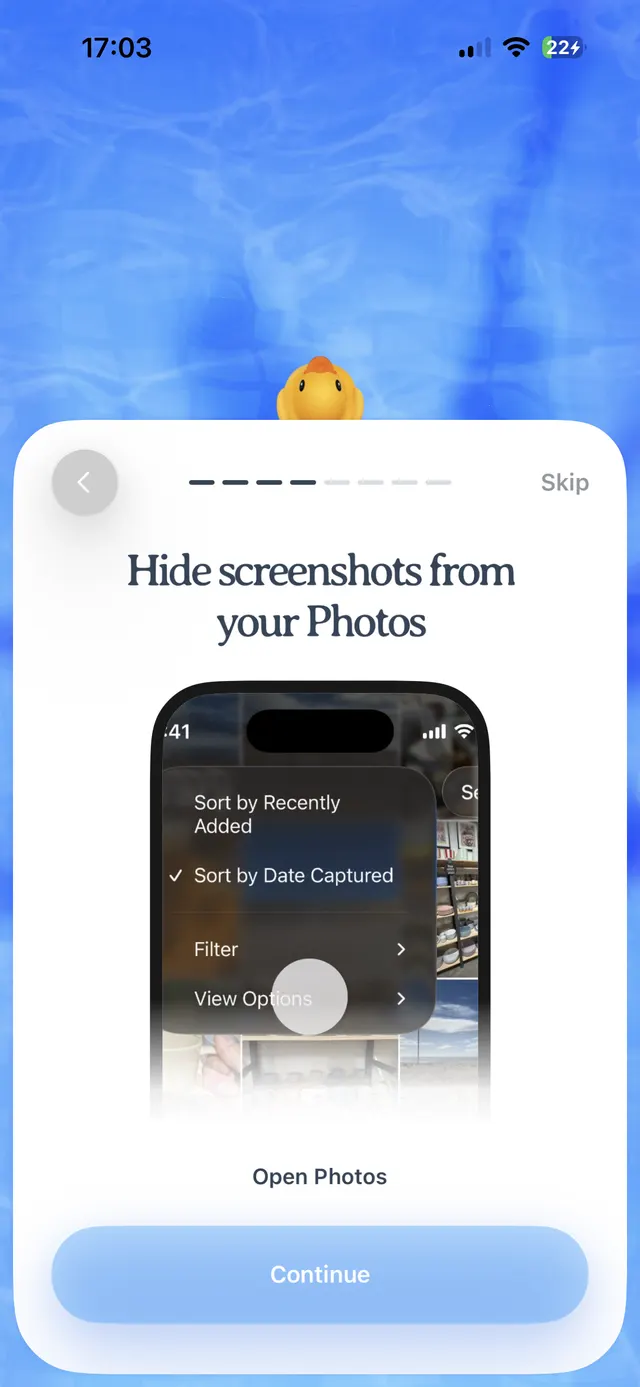
6
An iOS onboarding card over a blue textured background explains how to hide screenshots from Photos, shows a screenshot preview, and has Open Photos and Continue actions plus a Skip link.
Onboarding step with progress indicator and CTA

Guide users to turn off screenshot previews with a clear settings handoff.
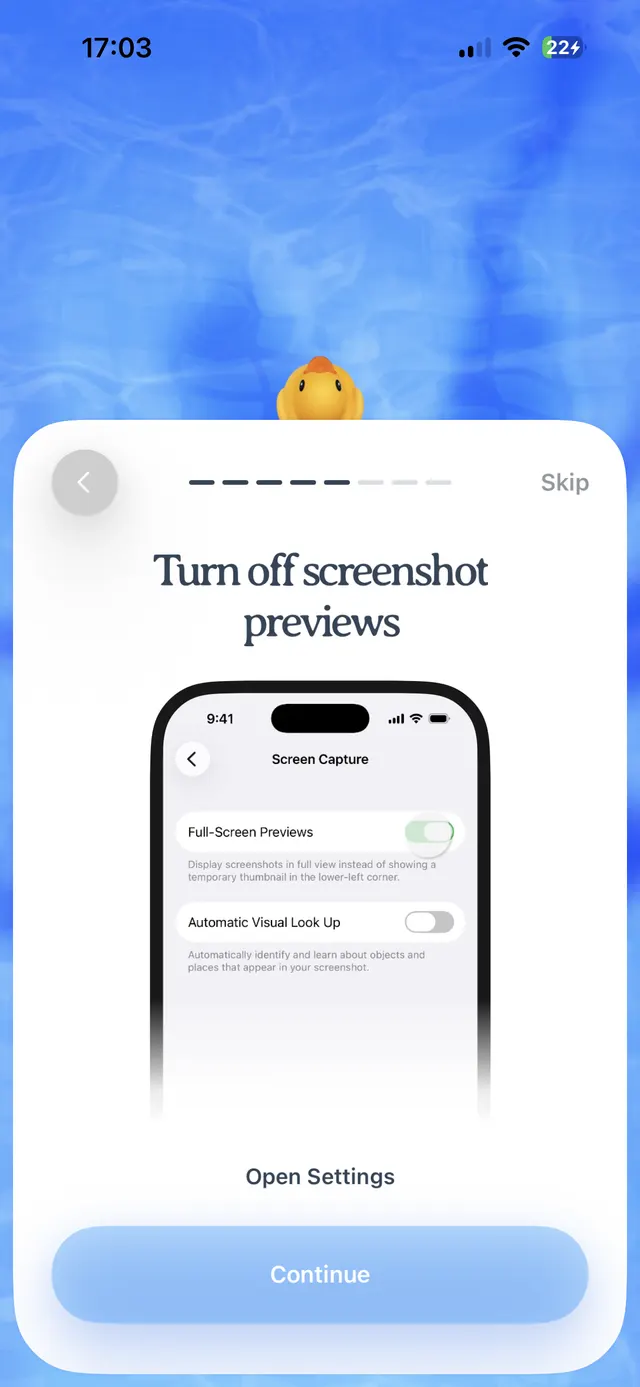
7
iOS onboarding card over a blue watery background with a progress indicator, back button, Skip link, illustration of a settings screen, and buttons labeled Open Settings and Continue.
Onboarding step: Turn off screenshot previews

Explain why screenshots should be hidden from Photos and continue setup.
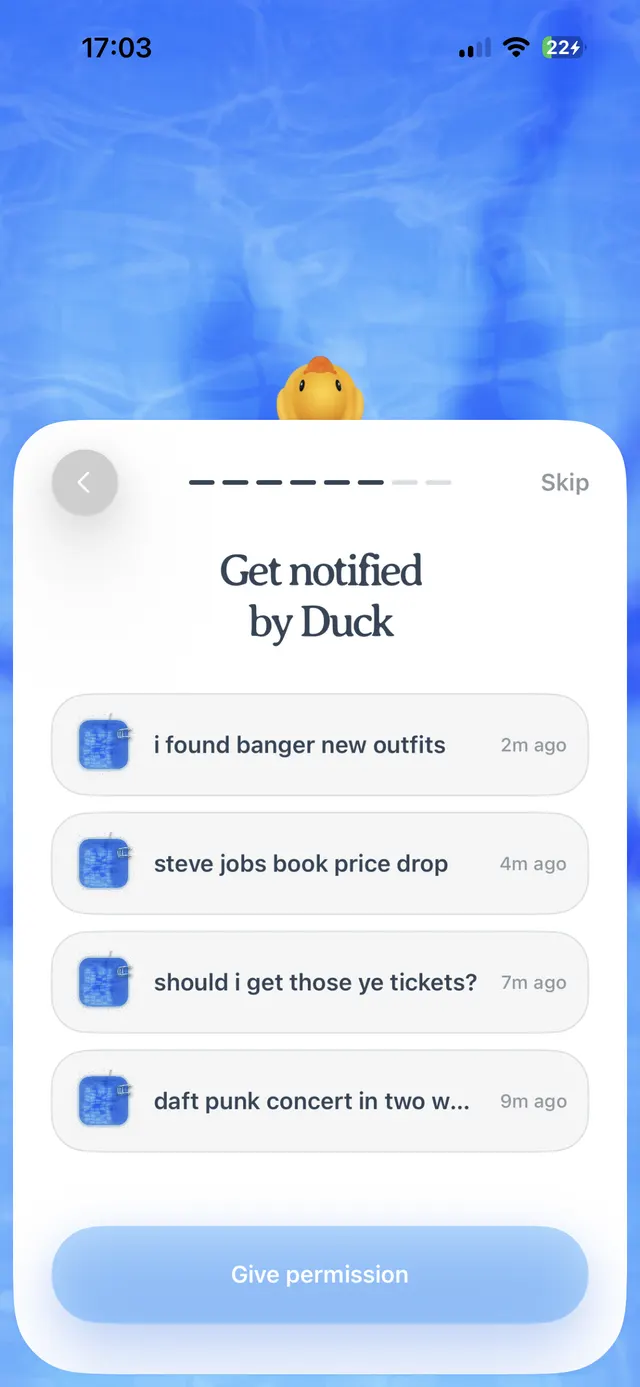
8
An iOS onboarding screen with a large white rounded card over a blue watery background. At the top is a back button, progress dots, and a Skip link. The card headline says Get notified by Duck, followed by example notification rows and a large Give permission button at the bottom.
9
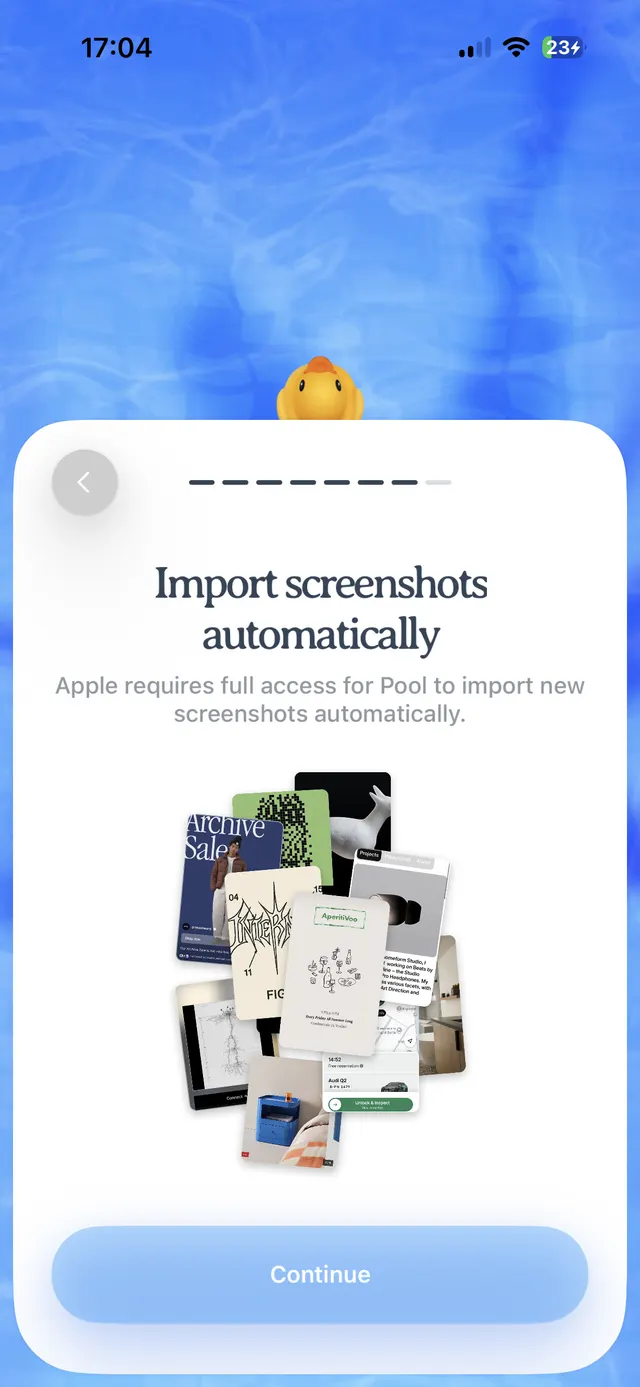
An onboarding screen on iPhone with a blue water-like background, a rounded white card, a back arrow, progress indicator dots, an illustration collage of screenshots, and a large Continue button.
10
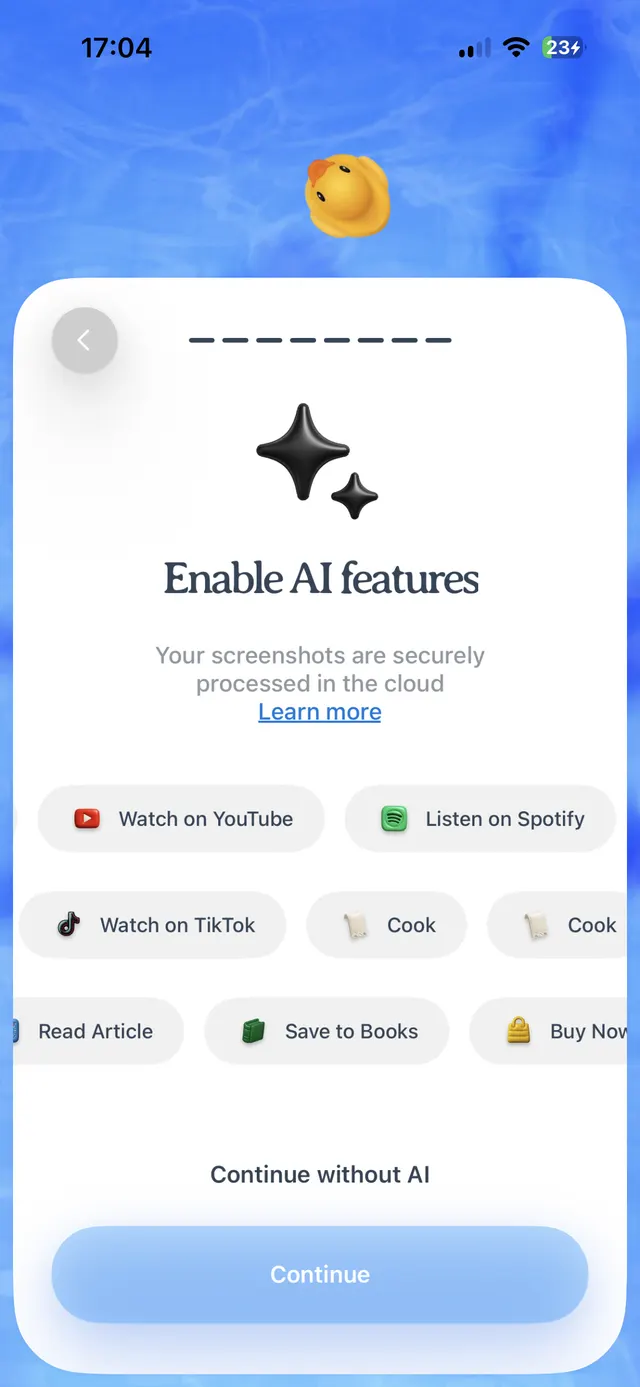
iOS screen with a large card prompting the user to enable AI features, explaining screenshots are processed securely in the cloud, showing multiple content/action chips like Watch on YouTube, Listen on Spotify, Watch on TikTok, Cook, Read Article, Save to Books, Buy Now, with a Continue without AI option and a primary Continue button.
AI features enablement prompt

Ask for notification permission with example value to improve re-engagement.
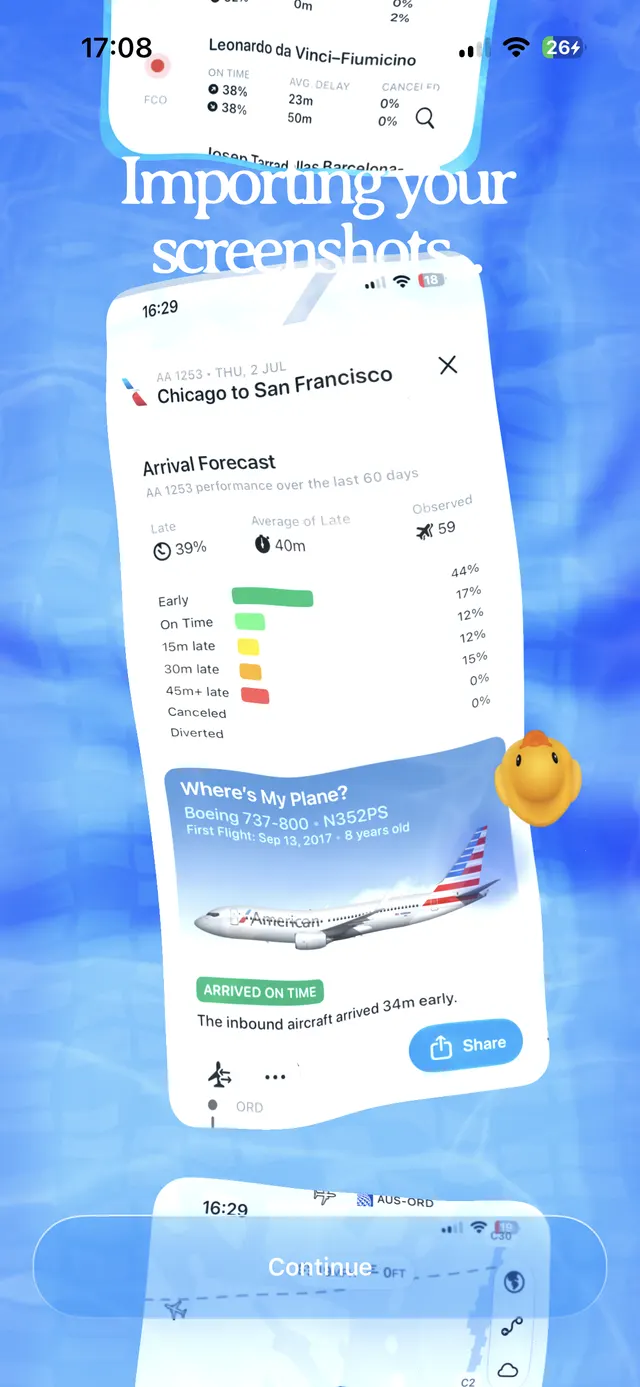
11
A mobile onboarding screen with a blue textured background and overlapping sample flight-status screenshot cards, centered text reading “Importing your screenshots,” and a large translucent “Continue” button near the bottom.
Importing your screenshots

Show importing status while onboarding completes and content is being brought in.